
Getting started with your FiveM server
To get your FiveM server up and running, you'll need to complete the initial setup and configuration through txAdmin — a feature-packed web interface that walks you through each step.
Getting access to txAdmin
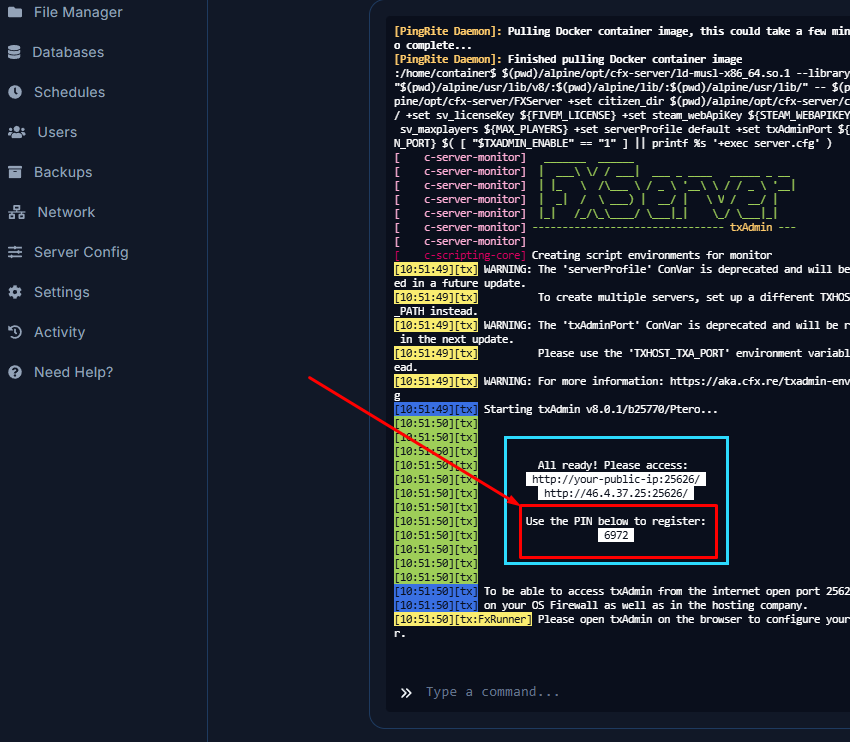
- After starting your server, look in the console log for the txAdmin registration pin. If you can't find it, restart your server to print it again.
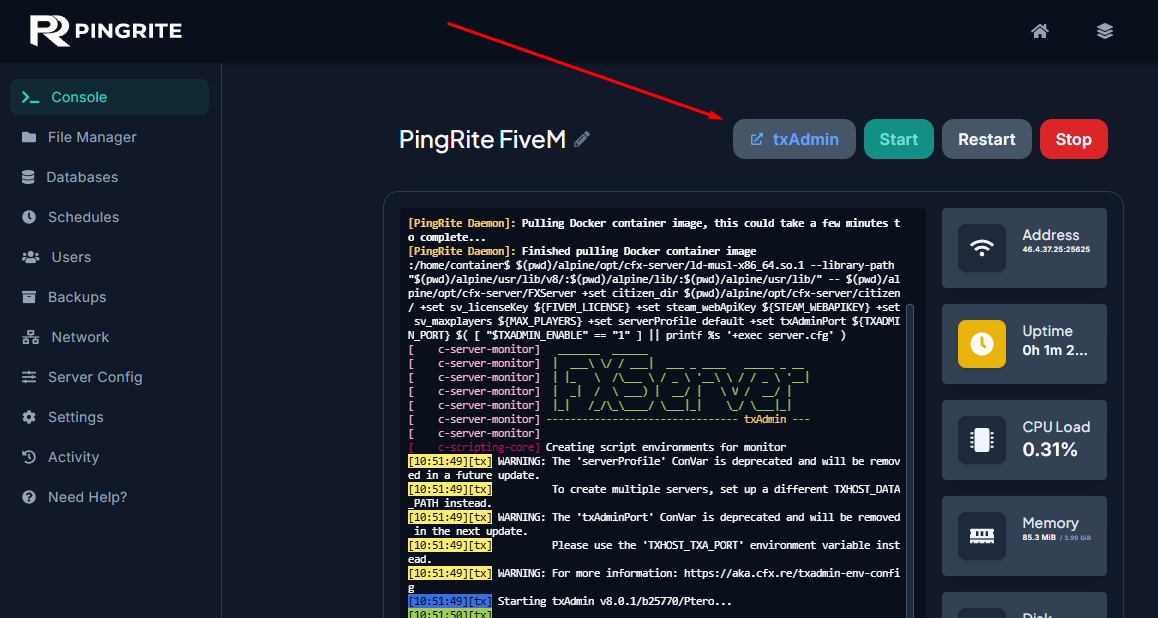
- Launch txAdmin.
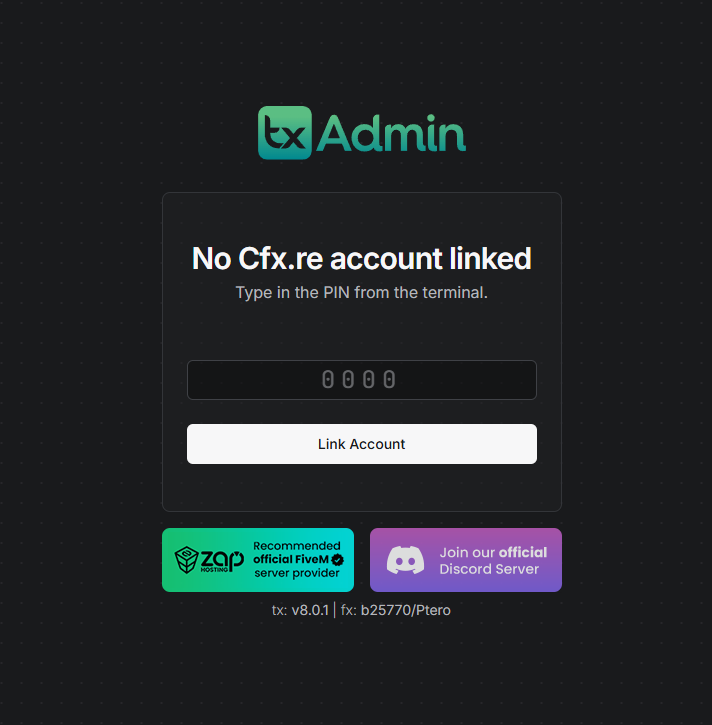
- Enter your server pin to link the server to your account.
- Log in or register your cfx.re account and authorize txAdmin to access your username and profile details.
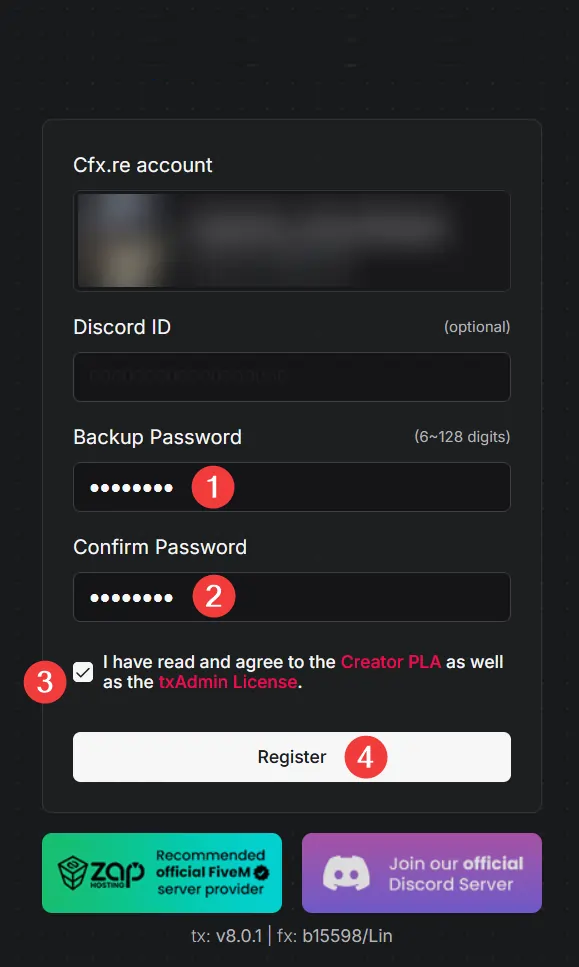
- Register the txAdmin administrator account for this server.
Note: This password is unique for every server and does not need to match your Cfx.re account's password.
Setting up your server
Note: To complete this step, you'll need a valid cfx.re license key. For details on generating one, check out this guide.
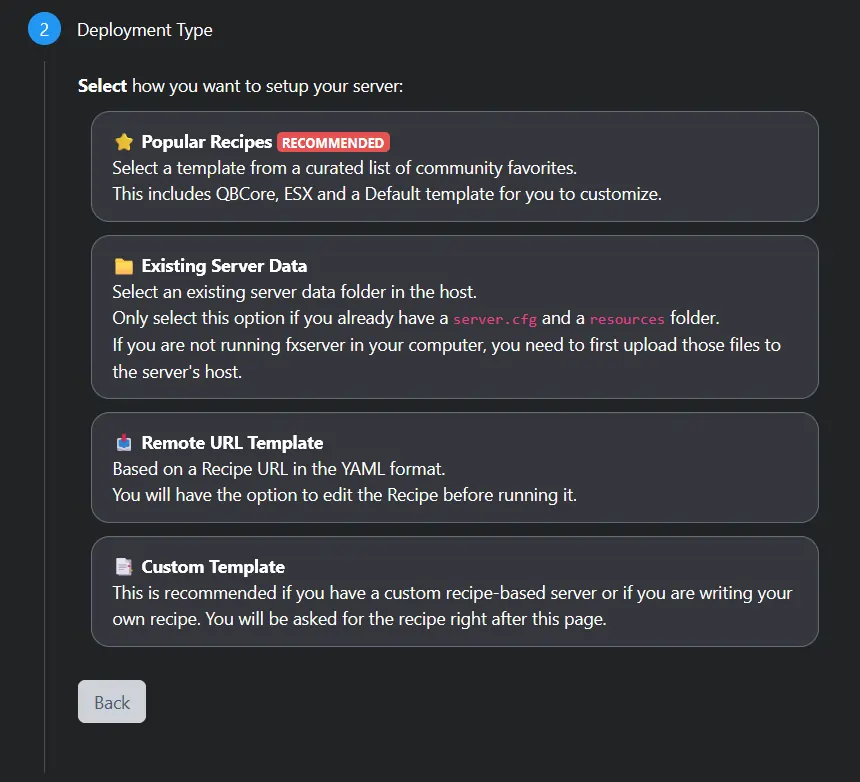
- Once logged in, select a deployment type. For this guide, we'll choose
Popular Recipes.
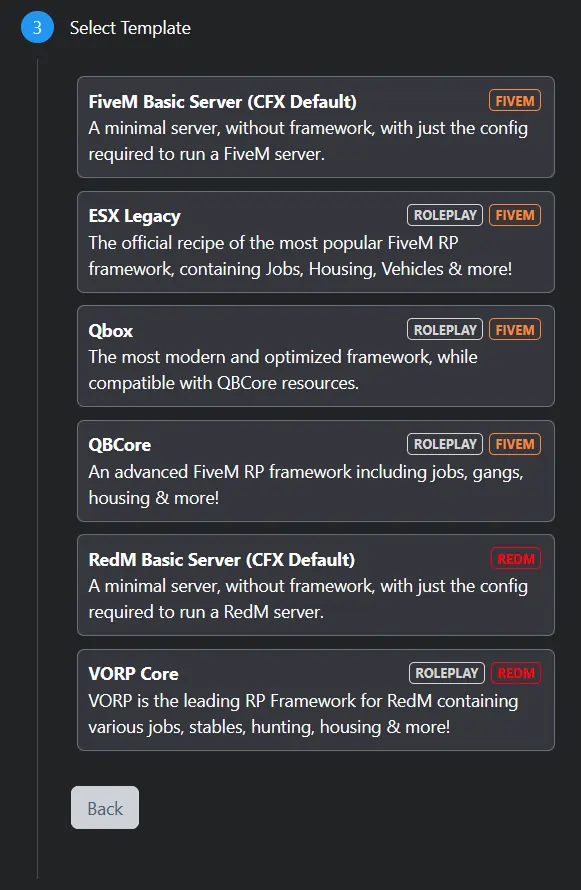
- Select a server template. For this guide, we'll choose
FiveM Basic Server.
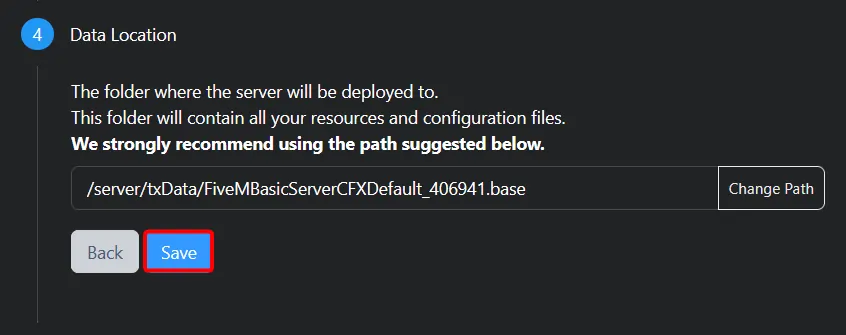
- Confirm your Data Location by clicking Save.
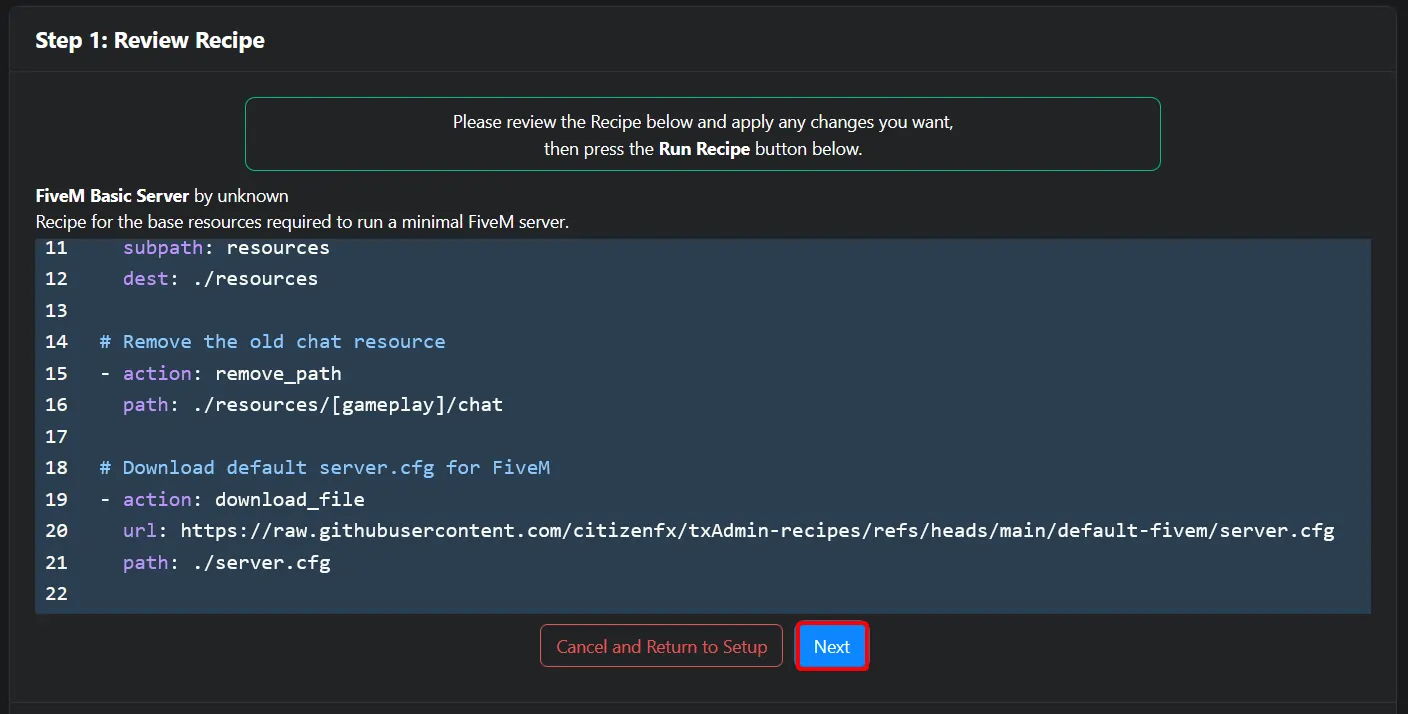
- Click
Go to Recipe Developer. - Review the generated recipe and click Next.
- Enter your Cfx.re license key and click Run Recipe. For details on generating a license key, see this guide.
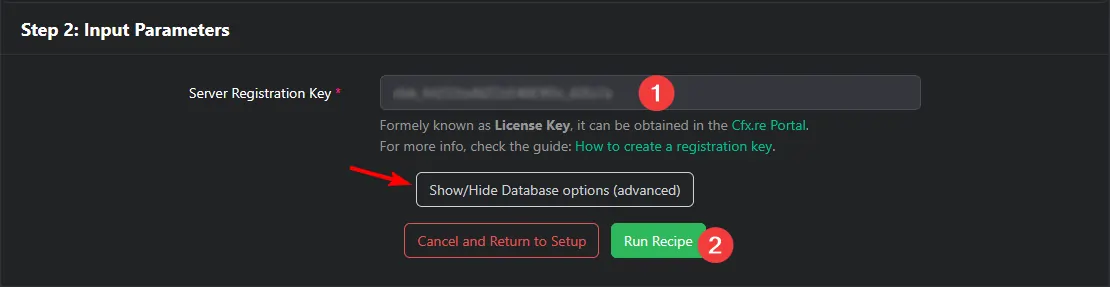
Note: Depending on the chosen template, your server might require a database to store information. If you see the Show/Hide database options button, please follow this guide before continuing the setup.
- Wait for the server to be deployed, then click Next.
- Edit your
server.cfgto configure the server's hostname, project name, project description, tags, and locale. A list of valid locales can be found here.
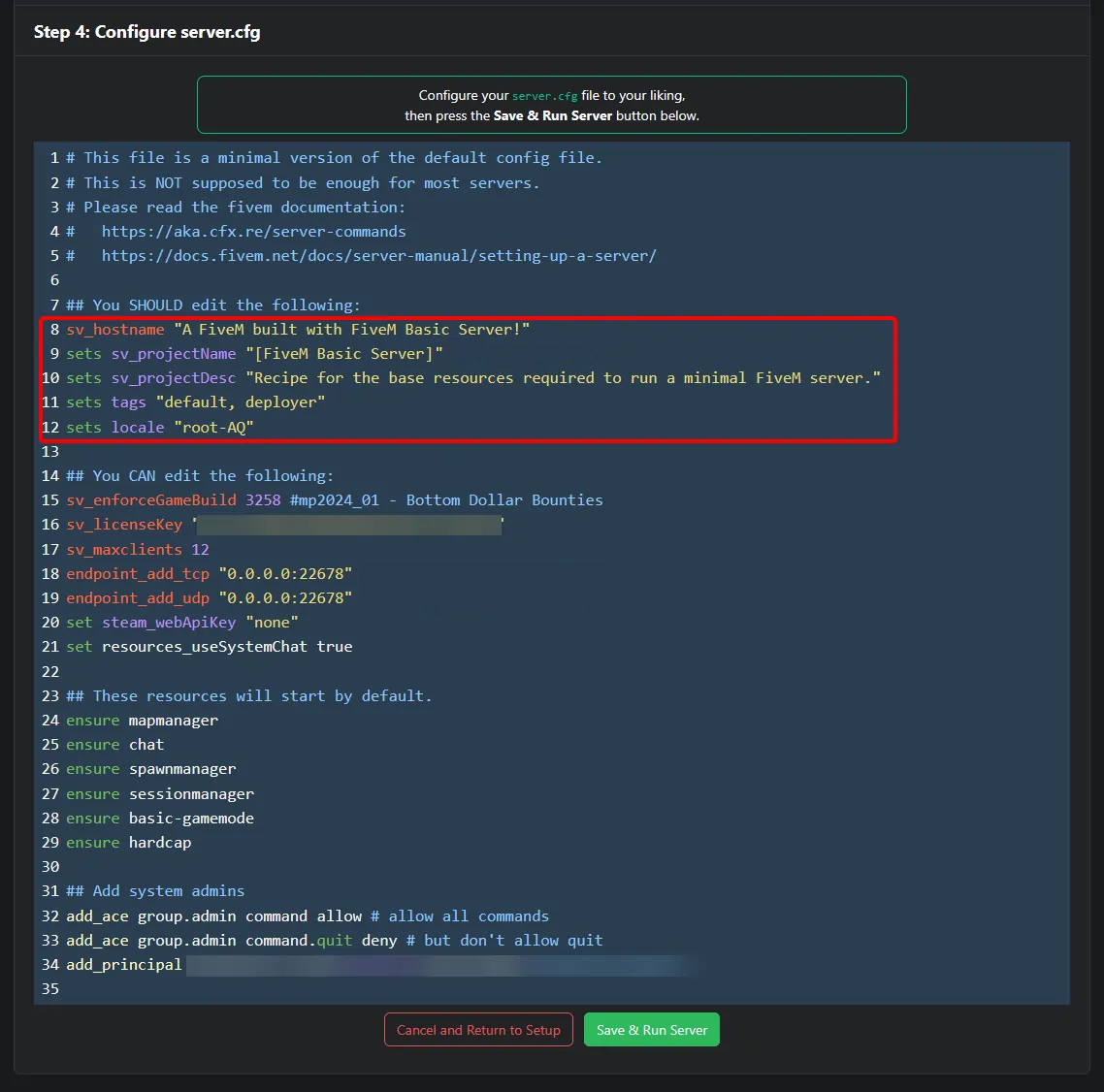
- When done, click Save & Run Server.
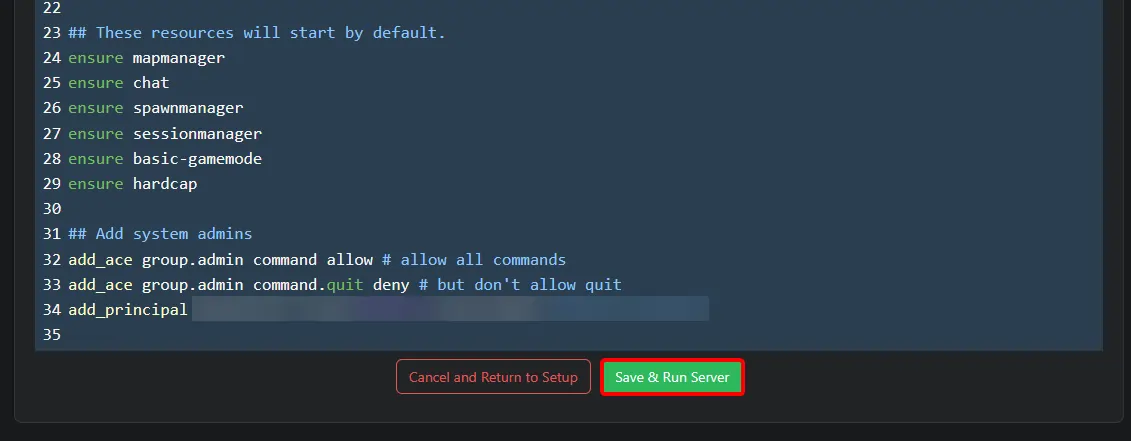
Your FiveM server will now be online and joinable. To learn more about managing your FiveM server, browse our knowledgebase for additional guides and tutorials.