
How To Make Your Satisfactory Server Run Experimental Mode
Note: When using experimental mode, both your server and game client must be running the experimental version, since it differs from the stable release. Keep in mind that experimental builds may contain significant bugs and receive frequent patches to address them.
Resetting the Server
Before switching to experimental mode, you should back up your server and perform a reset to avoid compatibility issues with the previous installation.
- Log in to your server control panel and stop the server.
- Go to the
Backupstab and create a new backup.
Changing Your Server Version to Experimental Mode
You can switch your server to experimental mode using the Server Type Selector in your control panel.
- Click on the
Server Configtag.
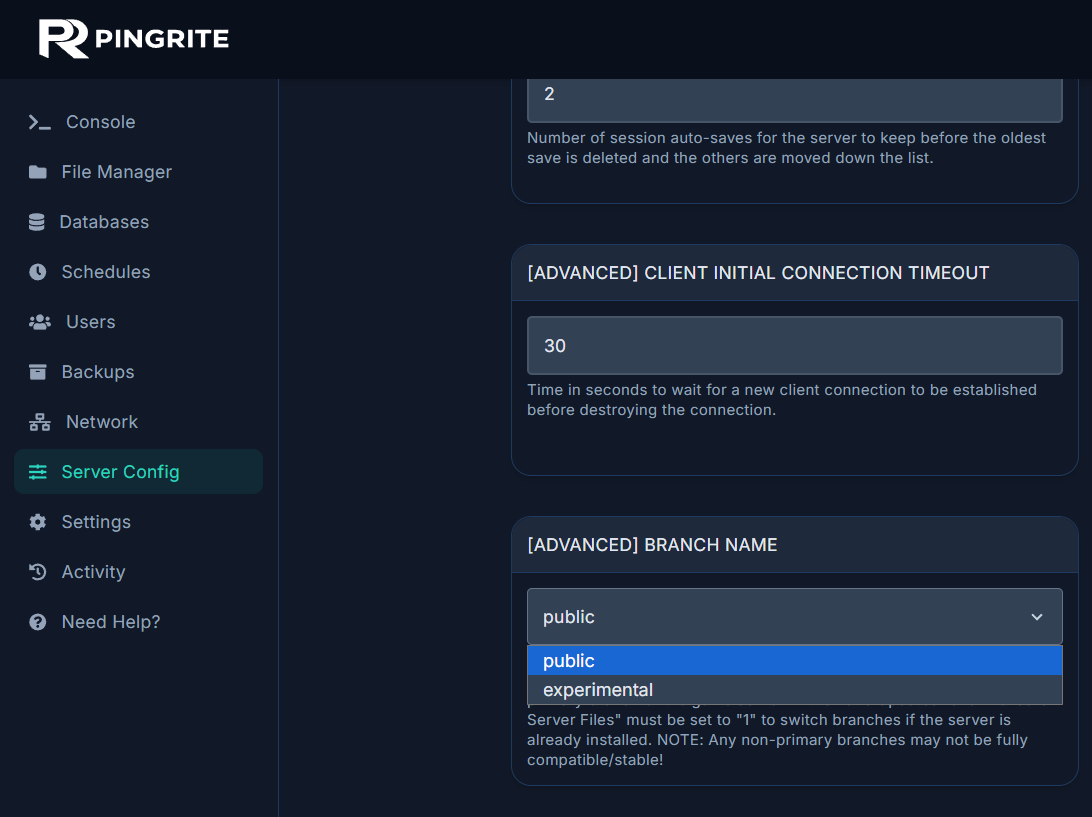
- Make sure the following setings are correct:
- Automatic Updates = Enabled
- [Repair] Validate Server Files = 1
- Set the [Advanced]Branch Name to
experimental. - Start your server.
If you ever want to switch back to the stable version, revert the server type, and restore your backup.
Setting Your Client to Experimental Mode
Once the server is running experimental mode, you also need to update your game client to match.
- Open your game launcher and navigate to your Library.
For Steam Users
- Find Satisfactory in your library, right-click it, and select Properties.
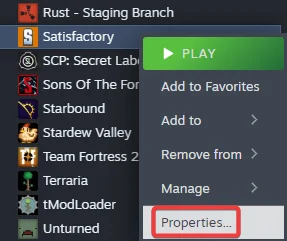
- Go to the Betas tab and opt in to the experimental beta branch.
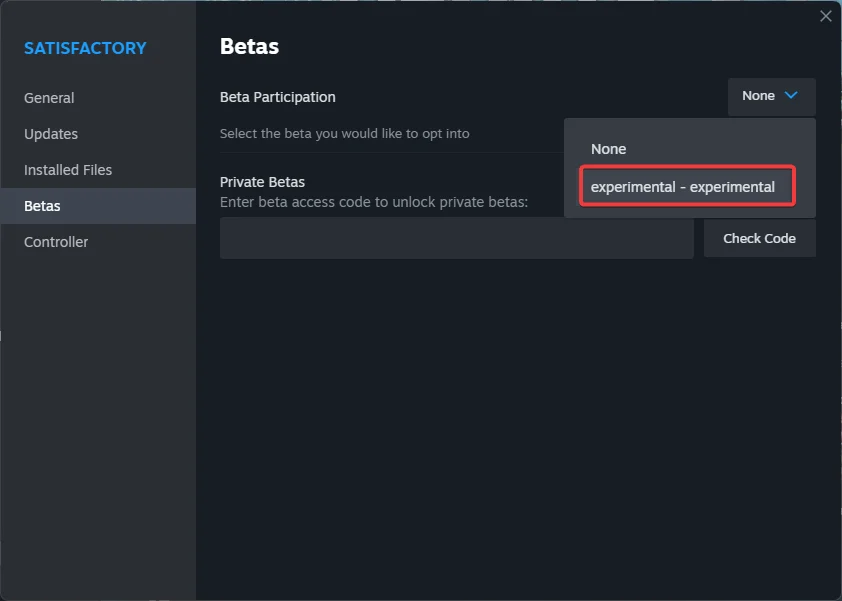
For Epic Games Users
- Locate Satisfactory Experimental in your library and install it.
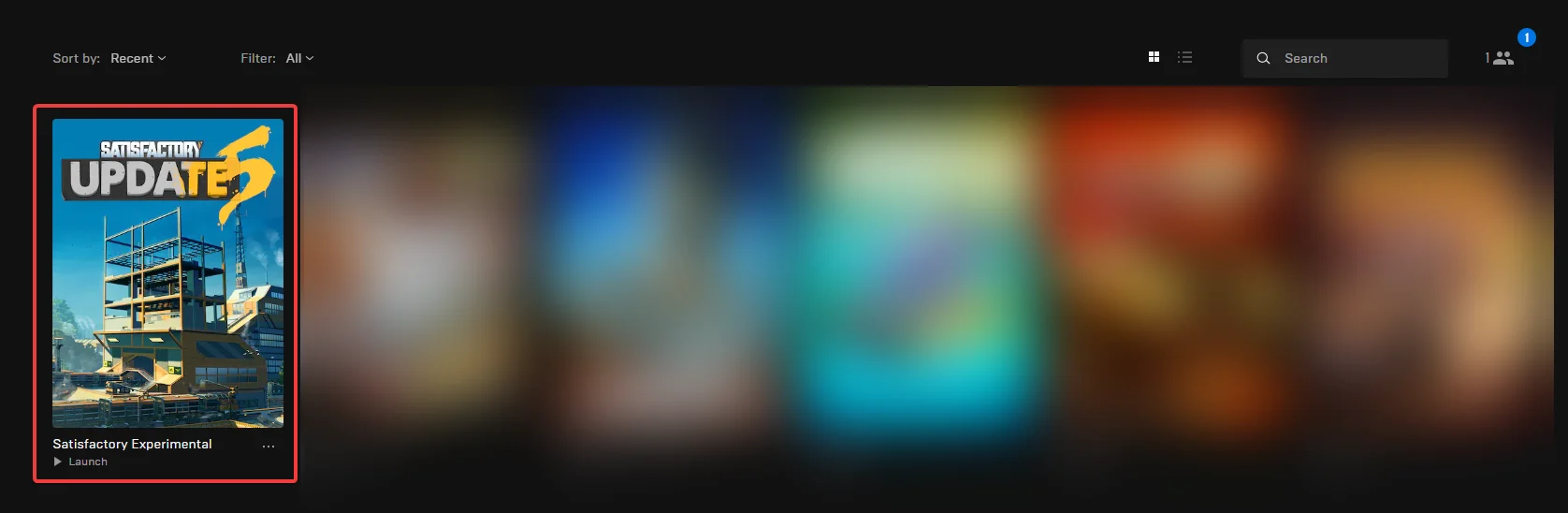
- Wait for the installation to complete, then launch the game.
Your server is now running in experimental mode.