
How to Add an Admin to Your Rust Server
Updated October 27, 2026
Rust server admins can use a variety of commands for server management — from kicking and banning players to restarting the server, changing the weather, and much more.
You can find a full list of available admin commands on this Wiki page.
Adding an Admin/Moderator
You can add moderators to your Rust server through the control panel console. Moderators have access to all commands but cannot promote other players.
- Get the SteamID64 of the player you want to promote by following this guide.
- Open your server control panel and go to the Console page.
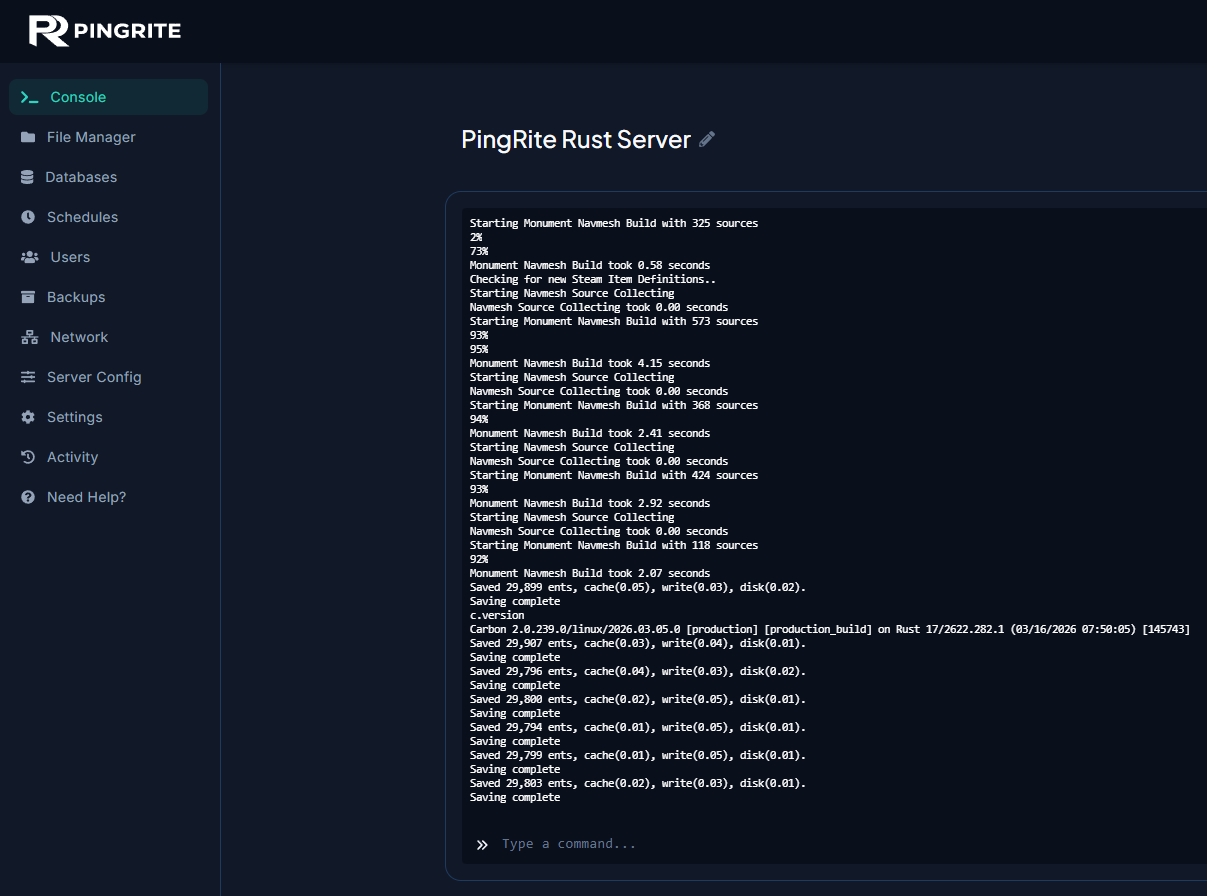
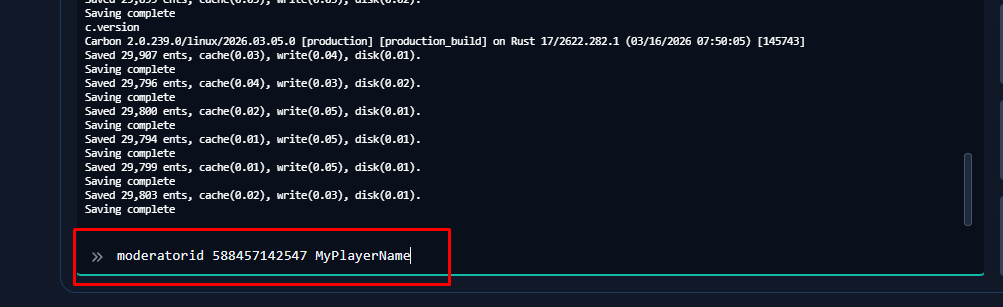
- Run the command
moderatorid <STEAMID64> <NAME (or) REASON>.
- Run
writecfgfollowed byreadcfgin the console to save and reload the config.
Adding an Owner
Owners can also be added via the control panel console. Unlike moderators, owners have full access to every command and can promote other players to moderator or owner.
- Get the SteamID64 of the player by following this guide.
- Open your server control panel and go to the Console page.
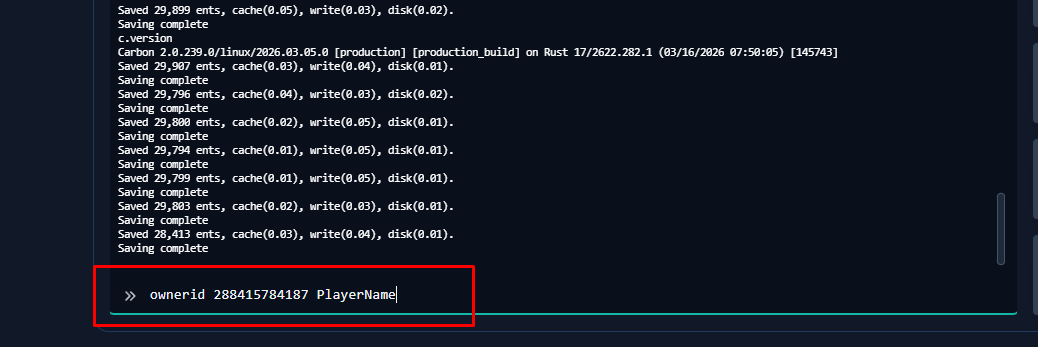
- Run the command
ownerid <STEAMID64> <NAME (or) REASON>.
- Run
writecfgfollowed byreadcfgin the console to save and reload the config.